
Linguistic Precision: Standardizing Instructional Delivery.

Professional Instructional Language.
This delivery playbook acts as your personal linguistic preparation framework.
It standardizes your core instructional delivery, process sequencing, and screen navigation vocabulary into repeatable, high-impact English patterns.
1. Functional English for Training.
When training senior logistics managers, your language must sound authoritative yet collaborative. Move away from passive descriptions and use active, direct verbs to drive the session forward.
Opening the Training Module.
- Standard Phrasing:
“Today I am going to teach you how to use the CargoWise system layout.” - High-Impact Professional Alternative:
“In this module, we will standardize our approach to the CargoWise interface to eliminate navigation latency and protect our data integrity.”
Setting Expectations.
- Standard Phrasing:
“Please don’t look at the advanced settings today because it’s not in the scope.” - High-Impact Professional Alternative:
“To maximize our time, we will focus exclusively on high-volume, operational workflows. Advanced configurations are intentionally out of scope for this session.”
Introducing a Live System Action.
- Standard Phrasing:
“Now I will show you live how to open a file.” - High-Impact Professional Alternative:
“Let’s run through a live demonstration of the ‘Happy Path’ process from initial booking to file authorization.”
2. Clear Instructional Language (The “One-Action” Blueprint).
To reduce cognitive load on your audience, structure your spoken instructions so that each sentence contains exactly one clear action. Avoid long, running sentences that combine multiple system steps.
| Instead of long, running loops… | Say this instead (One action per sentence) |
| “You need to open the Organisation menu and then search for the client name and click it so you can verify the tax ID before you do anything else.” | “First, open the Organisation menu. Next, type the client name into the search bar. Click on the profile. Now, verify the corporate tax ID.” |
| “If you want to attach the document you go to the e-Docs tab and click upload then you choose the file but remember to change the doc type or it gets lost.” | “Switch over to the e-Docs tab. Click the Upload button. Select your file. Finally, use the drop-down menu to assign the correct document type.” |
3. Sequencing and Process Explanation.
Logistics processes follow a strict chronological sequence. Your spoken English must mirror this structure. Use these explicit milestone markers to transition the audience from one step to the next without losing momentum.
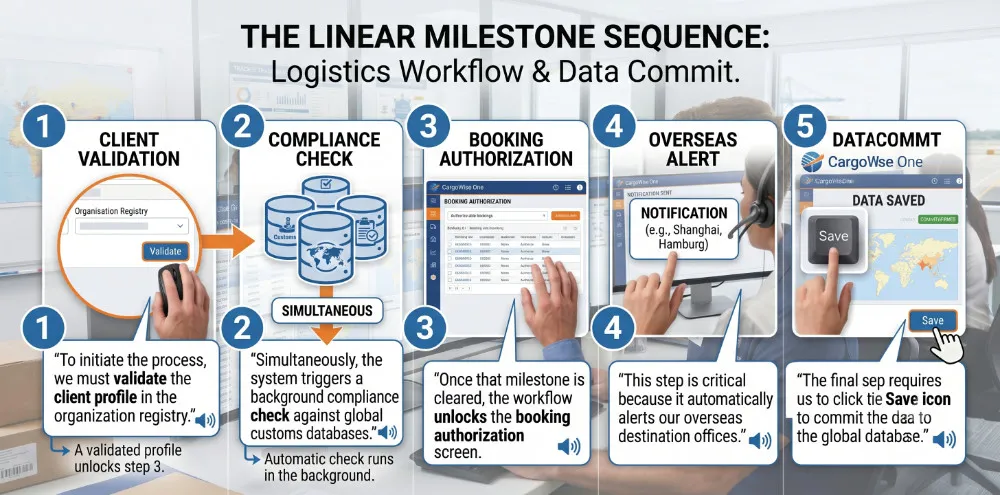
The Linear Milestone Sequence.
- “To initiate the process, we must validate the client profile in the organization registry.”
- “Simultaneously, the system triggers an background compliance check against global customs databases.”
- “Once that milestone is cleared, the workflow unlocks the booking authorization screen.”
- “This step is critical because it automatically alerts our overseas destination offices.”
- “The final step requires us to click the Save icon to commit the data to the global database.”
4. On-Screen and System Navigation Language
Never say “click here” or “look over there.” Use precise grid-location terminology paired with the exact user interface (UI) element name so users can follow your movements instantly.
The Precision Location Formula.
Always state the location on the screen before you state the required action. This gives the audience’s eyes time to move to the correct area before their hands move the mouse.
Top of the Screen.
- The Global Header: “Look at the very top of your screen, in the center of the global header. That is where you input your master file numbers.”
- The Top Corners: “In the top-left corner, you have your primary module navigation tabs. In the top-right corner, you will find your user profile configuration.”
Main Workspaces.
- The Left Sidebar: “On the left-hand side panel, notice the active document tree view.”
- The Central Grid: “In the middle of the screen, within the central grid workspace, all pending operational rows are displayed.”
- The Right Panel: “Move your eyes to the right-hand side panel to monitor real-time automated milestone updates.”
Bottom of the Screen.
- The System Footer: “At the very bottom of the window, in the system footer, look for the green connection status indicator.”
- The Bottom Corners: “In the bottom-right corner, locate the operational action buttons: Save, Cancel, and Process.”
5. Reusable Navigation Practice Drills.
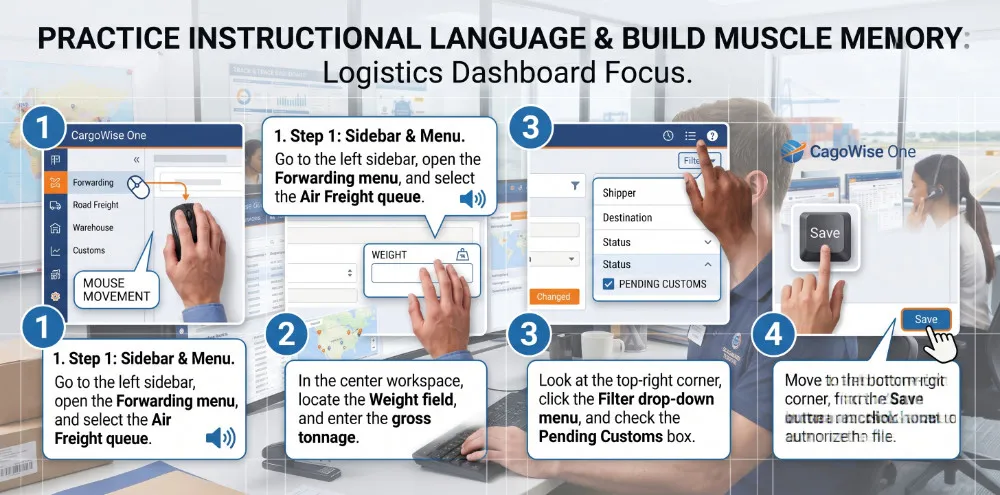
Practice reading these instructions aloud to build muscle memory for smooth screen delivery during live presentations:
- “Go to the left sidebar, open the Forwarding menu, and select the Air Freight queue.”
- “In the center workspace, locate the Weight field, and enter the gross tonnage.”
- “Look at the top-right corner, click the Filter drop-down menu, and check the Pending Customs box.”
- “Move to the bottom-right corner, find the Save button, and click it once to authorize the file.”
Lessons selected for you.